General (elements, diagrams, groups)
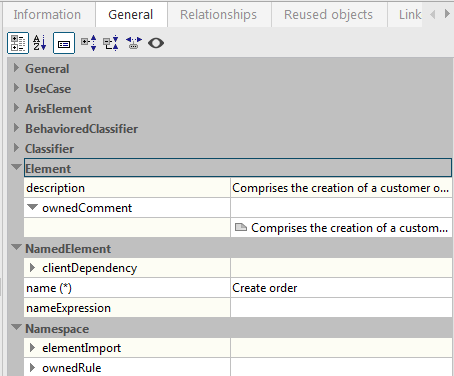
The General properties page shows all properties that are specified in the metamodel as attributes of the metaclass for the selected element and as attributes of the meta diagram for the selected diagram. The lower section of the page shows a description of the selected property. Properties that the metamodel stipulates must have a value are indicated by an asterisk (*).
The button  Show/Hide description area is used to set whether or not the description area is displayed.
The properties are grouped by the metaclasses and meta diagrams to which they are assigned as attributes in the metamodel. Alternatively, you can sort the properties alphabetically without displaying their metaclasses or meta diagrams (see Figure 55).
The  Categorized and
  Alphabetically buttons are used to toggle between the properties being grouped by metaclasses and displayed alphabetically.
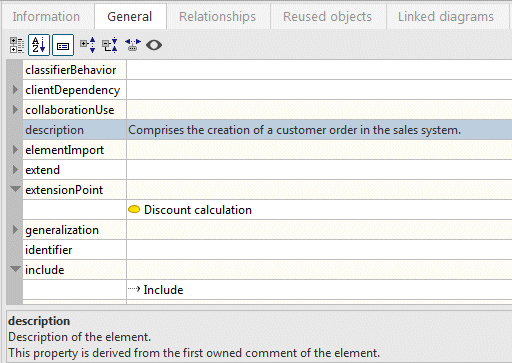
Apart from a few exceptions, properties that are based on derived meta attributes, that is, whose values have to be calculated at runtime based on other properties and elements, are not displayed by default. These exceptions include Element::/description, MultiplicityElement::/lower, and MultiplicityElement::/upper. You have the option of also displaying derived properties.
The button  Show derived properties enables or disables the display of derived properties.
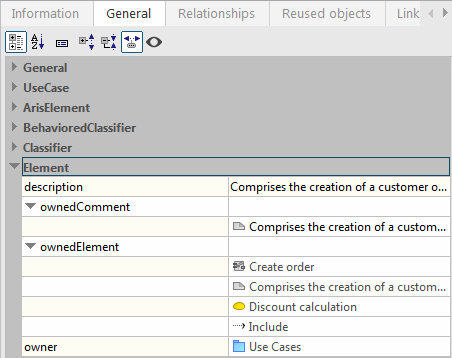
The example in Figure 56 shows that when displaying derived properties for the Element metaclass, that is, for all UML elements, the /ownedElement and /owner properties are also listed (see Figure 26: Root diagram from the UML specification with ARIS-specific extensions). Their values are written in gray rather than black to indicate that these properties cannot be changed.
The button  Show specified properties only hides or shows all properties that have no value.
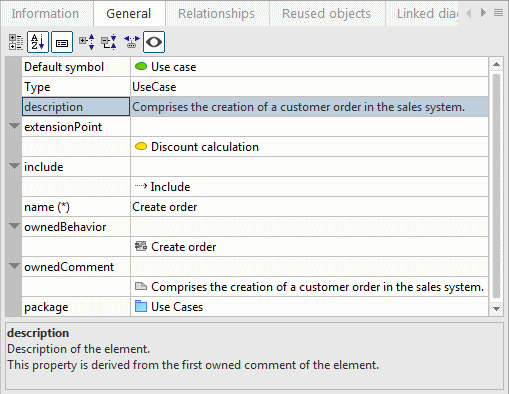
Figure 57 shows the same example as Figure 55, with the difference that all properties for which no value is specified are hidden here.
Clicking the value of a property allows you to edit it. The type of editing permitted depends on the property type.
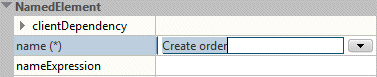
Properties of the String type can be edited directly in the text line:
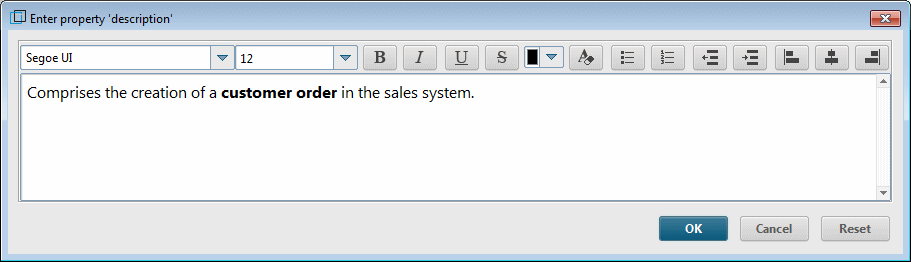
If the property supports formatted text, this dialog provides the corresponding formatting tools. ARIS UML Designer only supports this for descriptions and comments:
If the value of the property is a UML element, direct editing in the text line is also possible:
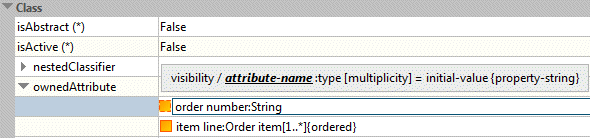
During editing, a corresponding UML syntax help is shown above the text line. This UML-specific text editing option is available in ARIS UML Designer wherever the element is displayed in this text form – in the Explorer tree, in the properties pages for the superior element, and in diagrams. It is described in more detail in Creating new elements in Explorer .
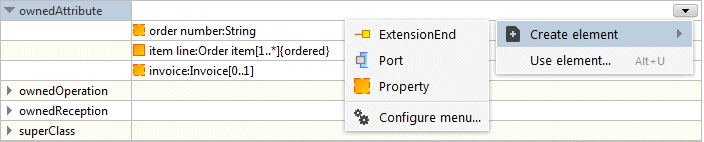
The button on the far right is used to open a pop-up menu, which provides additional functionalities for the element:
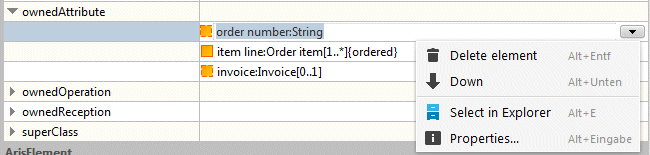
A pop-up menu is also available in the row of the table containing the name of the property. It is used to create corresponding new UML elements or to add existing elements to the property. The button for expanding the menu is available as soon as you click in the corresponding field in the table.