Explorer
When you launch ARIS UML Designer, the Explorer tab is displayed.
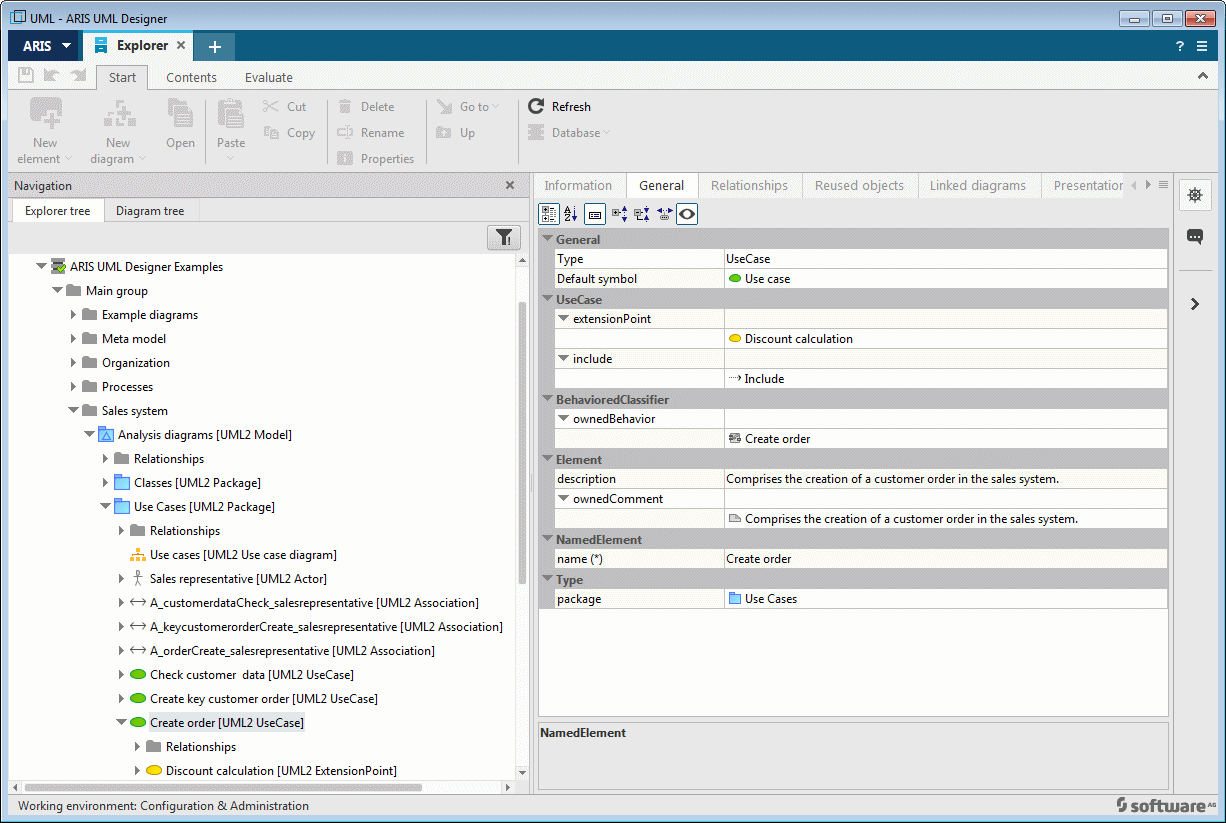
Figure 45 shows the Explorer tab in ARIS UML Designer. The Navigation bar on the left-hand side contains two trees – the Explorer tree and the Diagram tree. The properties of the element or diagram selected in the tree are displayed on the right-hand side. Alternatively, you can display the properties in a separate dialog by clicking Properties in the pop-up menu for an element or diagram.
The Navigation bar can be hidden using the  button at the right-hand edge of the window to create more space for the properties pages.
You can use the  button to show and hide the Implicit changes bar at the right-hand edge of the window. This area logs when a change to a UML element results in implicit changes to other UML elements. The Implicit changes bar is outlined in more detail in Implicit changes bar .
You can use the  button to hide all areas except for the properties pages. Clicking the button again reverts to the previous state.
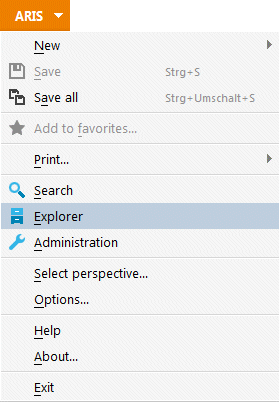
If you have closed the Explorer tab, you can re-open it by selecting Explorer in the ARIS menu.