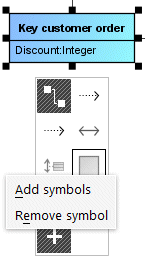
Mini toolbar
Clicking a node presentation displays a small toolbar next to it. This toolbar can contain node and edge symbols and you can adapt it individually for each symbol.
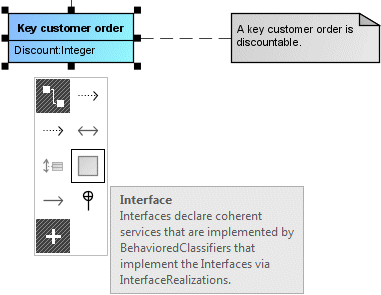
If you select a node symbol from the mini toolbar, you can create a corresponding element in the diagram, which is automatically linked to the selected node presentation by an edge. If several edge types are allowed between the two elements, a selection list is shown. In this case, first select the edge type and then click in the modeling are at the position where you want to create the node presentation.
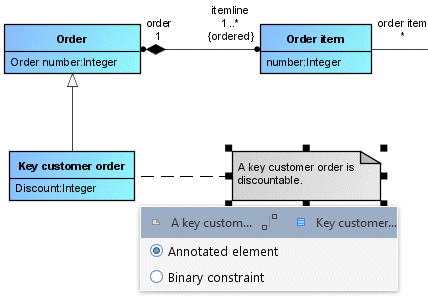
When you select an edge symbol from the mini toolbar, the node presentation for which the mini toolbar is displayed is used as the source element for the edge and then you only need to click the target element in the diagram to create the edge.
You can remove a symbol from the mini toolbar by selecting Remove symbol in the pop-up menu. Selecting Add symbol or clicking  Add symbols opens the dialog for adding a symbol.