Creating a new edge presentation
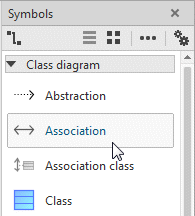
To create a new edge presentation, first select the corresponding edge symbol in the Symbols bar.
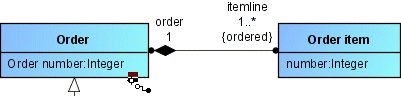
Moving the mouse pointer to the relevant source element in the diagram graphically displays the anchor point closest to the mouse pointer.
Clicking at this point specifies the starting point of the edge. Starting from this point, a preview of the edge up to the current mouse pointer position is then displayed. If you move the mouse pointer to the relevant target element, the nearest possible anchor point is once again displayed graphically.
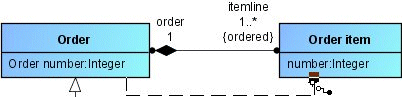
Clicking the target element creates the edge.
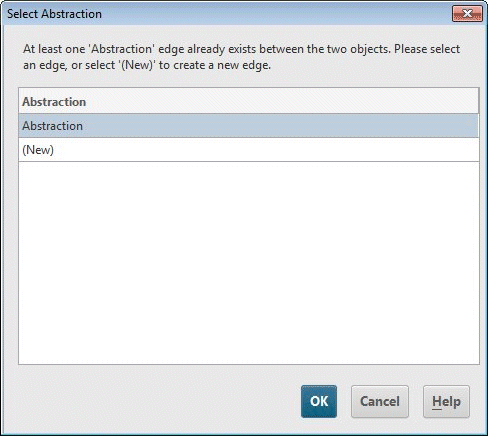
If a relationship of the same type already exists between the source and target element and more than one relationship of this type is allowed between the two elements, a dialog appears to ask whether you want to create a new edge presentation for the existing relationship or to create a new relationship (see Figure 108).
As an alternative to selecting a particular edge symbol, you can also use the general edge symbol from the Symbols bar to create an edge in the diagram.
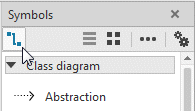
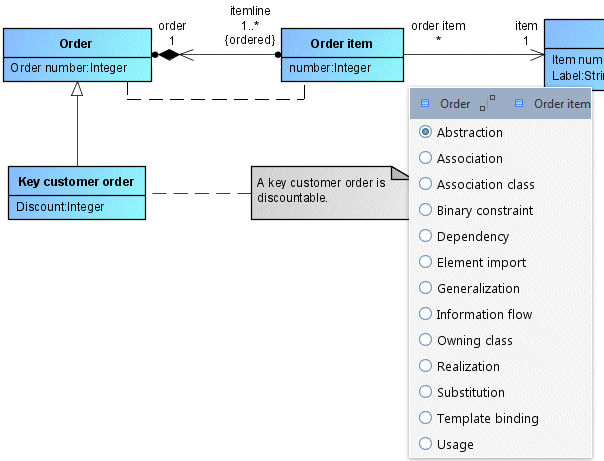
In this case, when creating the edge after clicking the target element a selection list is displayed, in which you are prompted to select the specific edge type.
Clicking  in the Start tab bar enables and disables edge mode. If edge mode is enabled, possible edge anchor points are automatically displayed in the diagram as soon as the mouse pointer is close to them. It is not then necessary to select the general or a specific edge symbol in the Symbols bar first.