Creating new node presentations
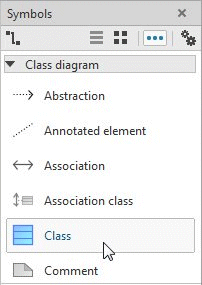
New node presentation elements can be created in the diagram by first selecting the corresponding symbol in the Symbols bar by clicking it.
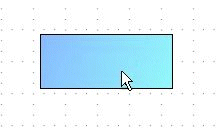
If you then move the mouse pointer to the modeling area, a preview of the new presentation to be created is displayed at the mouse pointer.
Clicking in the modeling area creates the presentation at that point and displays a text input box for entering the name.
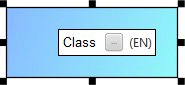
This text input box initially contains the corresponding symbol names, possibly supplemented by an underscore and a number (_1,_2, etc.) if elements of the same type with this name already exist.
The content of the text input box is applied when you complete your entry by pressing the Enter key or by clicking at any point in ARIS UML Designer outside the text input box. Depending on your setting in the global options, text entry can also be completed by simultaneously pressing Ctrl and Enter. If, on the other hand, you exit the entry by pressing Esc, the original name is retained.
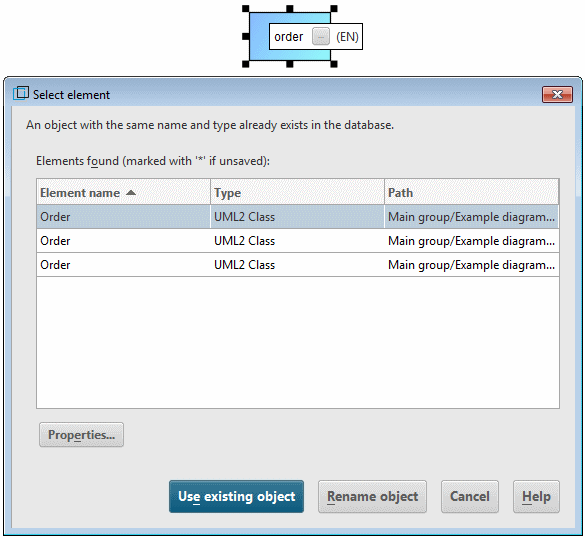
If you have entered the name of an existing element of the same type in the text input box, the Select element dialog opens and asks whether you want to create a new presentation for the existing element in the diagram, or whether you want to create a new element with this name (see Figure 103).
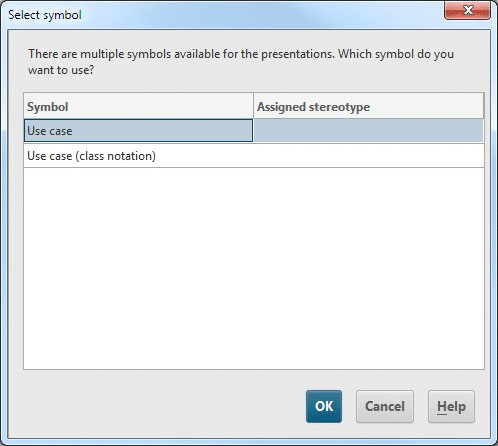
You can also create a new presentation for an existing element by dragging the element from the Explorer tree to the modeling area or by copying it from the Explorer tree to the clipboard and pasting it in the diagram. If several possible symbols exist that can represent the element in the diagram, you are asked which of these symbols you want to use (see Figure 104). By contrast, if you copy a presentation of the element from a diagram to the clipboard and then paste it into a diagram, there is no prompt as in this case all the presentation properties of the original, such as symbol, color, and size are also copied.