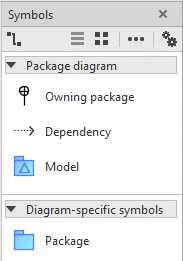
Symbols bar
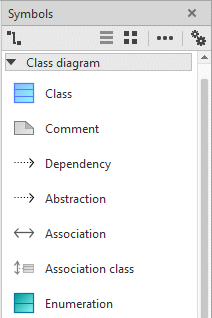
The Symbols bar is used to create elements and relationships in the diagram. In contrast to ARIS Architect/ARIS Designer, it also contains edge symbols.
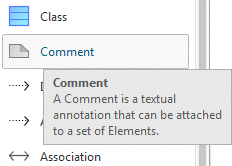
If you move the mouse pointer briefly over a symbol, a description of the symbol is displayed.
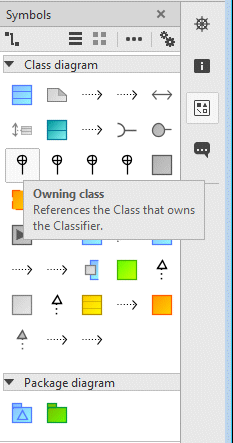
You can use the  Show symbols with names and
  Show symbols without names buttons to show and hide the symbol names in the Symbols bar.
Selecting the Remove symbol item in the pop-up menu enables a symbol to be removed from the Symbols bar.
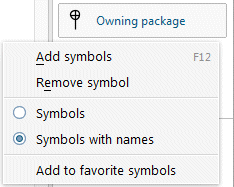
You can click the Add symbols  button or the Add symbols item in the pop-up menu to open the dialog for configuration of the Symbols bar.
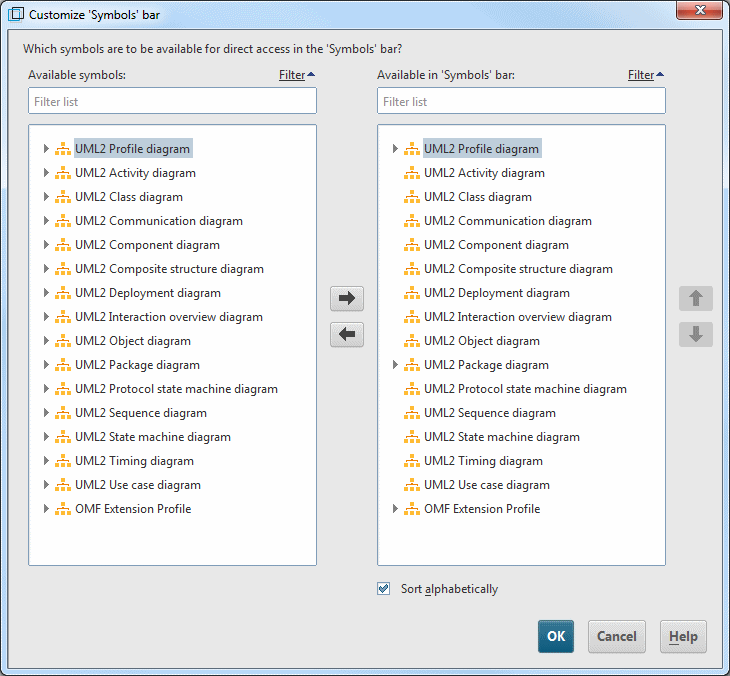
The dialog contains a list of the available symbols and a list of the symbols contained in the Symbols bar, in each case grouped by diagram type. In the case of structure diagrams such as the Class diagram, you can add any UML diagram types to the Symbols bar.
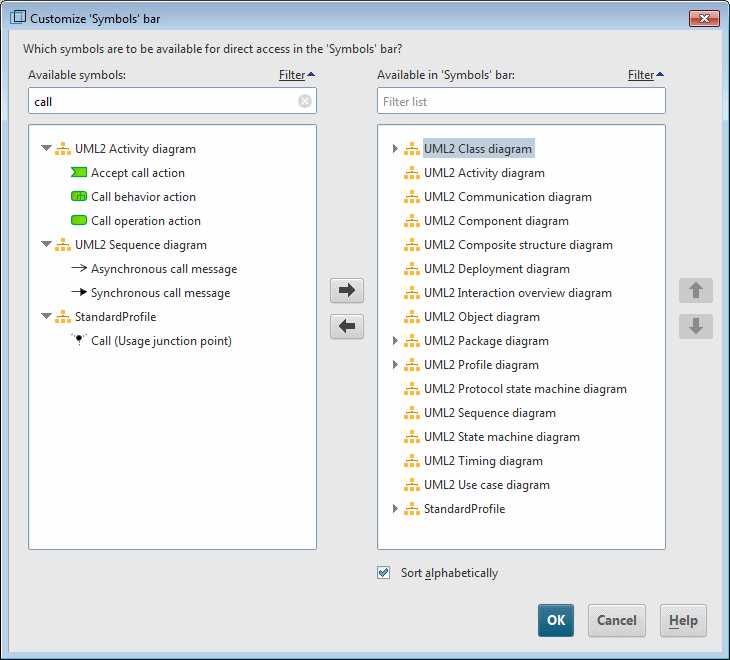
A text input box above the list enables the list to be filtered by the symbols whose name contains the text entered. The corresponding diagram nodes are automatically expanded in the list, allowing fast access to the symbol you are looking for (see Figure 91).
In addition, the Symbols bar in ARIS UML Designer provides the option of grouping frequently used symbols in the upper section of the Symbols bar for fast access, regardless of their diagram type.
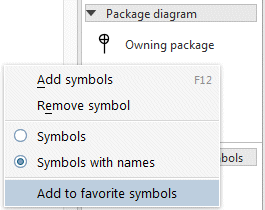
To do this, select the Add to favorite symbols pop-up menu item for the corresponding symbol in the Symbols bar.
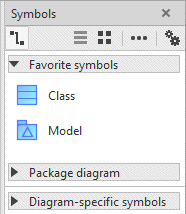
The symbol is then also displayed in the top section of the Symbols bar under Favorite symbols.
Clicking  Create additional symbol presentation enables you to create an element in a diagram whose symbol is not to be permanently contained in the Symbols bar for all diagrams of the same type. The Create presentation dialog opens (see Figure 94).
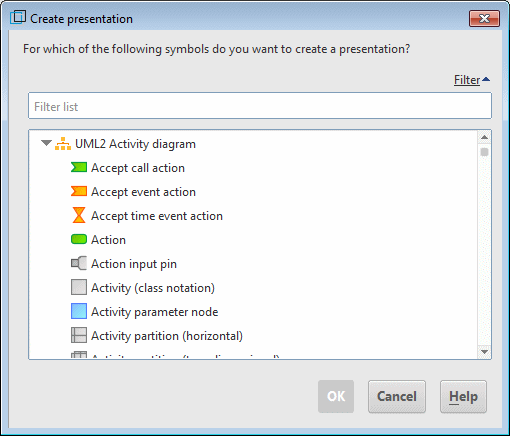
The dialog lists all available symbols, once again grouped by diagram type, and provides the same filtering by text input as the dialog for configuration of the Symbols bar.
If a diagram includes presentations of symbols that are not contained in the Symbols bar for the diagram type, they are displayed in the Symbols bar for the relevant diagram in the Diagram-specific symbols section of the Symbols bar.